1A
If you have not done so, create the directory structure specified in Lab1.
Start a new Bluej project called hw1a_arithmetic_draft in the cs46a/homework/hw01/draft folder. You can actually name the project anything, but this is a good naming convention that will help you keep things straight.
In the Bluej project, create a class called ArithmeticPrinter. (You must use this exact name to pass Codecheck). Copy and paste the start code from the 1A draft link below.
Finish the application so that it prints the sum of the first four even numbers. (2 + 4 + 6 + 8 )
and then on the next line, prints the product of the same four numbers. Product means multiply. You use the symbol '*' to multiply in Java
To have an application, you need a main method. It is provided for you in the starter code
Do not do the arithmetic on a calculator or in your head and simply display the answer. Actually have the computer do the work by doing the calculations in a System.out.println statement. (Look at Udacity lesson 1 "Text and Numbers" again if you have trouble). As an example, to print the sum of the numbers 1 to 5, you would use a statement like this
System.out.println(1+ 2 + 3 + 4 + 5);
For the draft, only print the sum of the first four even numbers.
To compile your code, click the Compile button in the top left. To run your program. right click on the ArithmeticPrinter rectangle in Bluej and choose void main(String[] args)
When you think your code is correct, copy the whole class from Bluej and paste it into the textarea in the Codecheck draft link. Click submit. This will generate a HTML report about the correctness of your solution. Click the Download Report button and save it until you have all three
When you are ready to work on the final, copy the Bluej project (hw1a_arithmetic_draft) into the cs46a/homework/hw01/final folder. Change the word draft to final. This will help you tell the draft and the final when both are open in Bluej. Open the copied project (hw1a_arithmetic_final) in Bluej and complete the assignment.
Note: It is important to remember that Codecheck just helps you get your code to work. It does not submit it for grading. You must download and submit the report for grading in the Canvas Assignment area. See Submission directions at the bottom of the page.
It is important that you name your class exactly as specified otherwise Codecheck will not be able to process your submission and you will get no credit.
If you use an IDE like Eclipse or Netbeans, do not include a package statement. Codecheck will not be able to process your submission and you will get no credit.
To run your draft in Codecheck, click on the draft link below. Copy and paste the code from Bluej into the textarea and click submit. If your code passes the test, Congratulations. If not, go back to Bluej, make any necessary changes, and repeat the process.
See the Submission directions at the bottom of the page.
Follow a similar process for the final version.
1B
Start a new Bluej project called hw1b_year_draft in the cs46a/home works/hw01/draft folder.
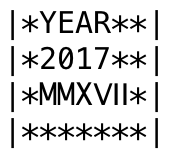
In the project, create a new class called YearPrinter (you must use this exact name to pass Codecheck). In this application, you will display the year first in digits then in Roman numerals.
Go to the Codecheck draft link at the bottom of the page. Copy the YearPrinter starter code you are given there. Create a YearPrinter class in your Bluej project. Paste the code form Codecheck into the Blue class.
The completed final version will look exactly as shown.
For the draft, just print the first two lines like the image below. You will add the code for the draft inside the main method.
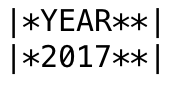
The "|" is called a pipe and is located above the Return (Enter) key
When you think your draft code is correct, copy the whole class from Bluej and paste it into the textarea in the Codecheck draft link. Click submit. This will generate a HTML report about the correctness of your solution. Click the Download Report button and save it until you have all three
When you are ready to work on the final, copy the Bluej project (hw1b_year_draft) into the cs46a/homework/hw01/final folder. Change the word draft to final. This will help you tell the draft and the final when both are open in Bluej. Open the final project (hw1b_doll_final) in Bluej and complete the assignment.
The third line in the printout needs more explanation. The third line does not consist of the English characters M, X, V, and I. These are actually special characters representing the Roman numerals. If you use the letters on the standard keyboard, your output will not match the Codecheck output.
So how do you get the Roman numerals? Well, every printable character in English and most other languages, along with many symbols is represented by a hexadecimal number (it is called Unicode). When you type a character on your keyboard, the computer software takes care of translating the character to its Unicode representation. But when we want to display a character that is not on the keyboard like the Roman numerals, we have to supply the Unicode ourselves. We could also specify the English characters directly with Unicode, but it is much easier to let the computer take care of the translation. Here is a table of a few characters and their Unicode values
| Character | Unicode |
|---|---|
| Y | \u0059 |
| E | \u0045 |
| A | \u0041 |
| R | \u0052 |
 |
\u216F |
 |
\u2169 |
 |
\u2166 |
In Java, the "\u" is an escape sequence which tells the compiler that the following characters have a special meaning, the Unicode for some character.
The following two statements will display the same results: the word "YEAR" in all uppercase. The first uses the Unicode values for the letters.
Note: For this assignment, you must use Unicode for the characters Roman numerals and not just paste the symbol in the println statement.
Note: It is important to remember that Codecheck just helps you get your code to work. It does not submit it for grading. You must download and submit the report for grading in the Canvas Assignment area. See Submission directions at the bottom of the page.
It is important that you name your class exactly as specified otherwise Codecheck will not be able to process your submission and you will get no credit.
If you use an IDE like Eclipse or Netbeans, do not include a package statement. Codecheck will not be able to process your submission and you will get no credit.
To test your draft, click on the draft link below. Copy and paste the code from Bluej into the textarea and click submit. If your code passes the test, Congratulations. If not, go back to Bluej, make any necessary changes, and repeat the process.
See the Submission directions at the bottom of the page.
Follow a similar process for the final version.
1C
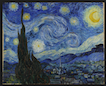
Here is a painting by a famous artist (Starry Night by van Gogh). I want to enlarge it so I can see more detail
Download hw1c_painting_draft.zip which contains the files you will need. Unzip it into your cs46a/homework/hw01/draft folder. (See Lab 1 Part B for directions on unzipping a file correctly in Windows.)
Open the folder. Double click package.bluej to open the project. Your workbench will look similar to this.
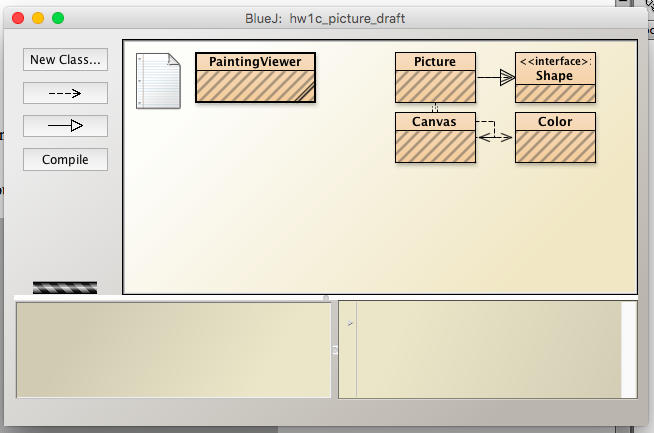
If it does not look like this image, STOP. We need to get you straightened out. You should not see a red folder that says "go up" That means you have not unzipped correctly
Complete the PaintingViewer class following these instructions
If you have forgotten how the translate and grow methods work, re-watch Udacity Lesson 2 "What does this method do?" and "Variables"
For the draft, just create the picture and draw it. Don't translate or grow it until the final version.
When you are ready to work on the final, copy the Bluej project (hw1c_painting_draft) into the cs46a/homework/hw01/final folder. Change the word draft to final. Open the project and complete the assignment.
Submission
When you are finished with your code, submit it in Codecheck one final time. Notice at the bottom left there is a "Download" button. Click that and a .signed.zip file will be downloaded. That is the file you need to upload into Canvas.
When you are working on the draft, add the word "draft" to the end of the name, before .signed.zip after downloading. For example ArithmeticPrinter_draft.signed.zip. (Leave .signed.zip alone and do not add any extra dots)
When you are working on the final, add the word "final" to the end of the name, before .signed.zip. For example ArithmeticPrinter_final.signed.zip. This will help avoid submitting the wrong version.
Be sure to upload the .signed.zip file produced by Codecheck not the .java file you wrote. Do not open and alter the downloaded file in anyway. The files are digitally signed and the graders will check that they have not been altered.
For both the draft and the final, you will upload 3 signed.zip files. Upload all three programs at one time. Double check in Canvas that the files were uploaded
Warning: do not submit the final version as the draft. In order to be graded correctly, you must submit a program that does exactly what is specified for the draft - no more, no less.