Creating and submitting homework
- Create a new BlueJ project
- Create a new class in the Bluej project by clicking the New Class button. Give the class a name
- From the link at the bottom of the homework problem, go to Codecheck

- If there is any starter code, copy it and paste it into the class in Bluej. Complete the assignment

- When you think the code is running correctly in Bluej, from the link at the bottom of the homework problem, go to Codecheck again
- Copy your finished code from BlueJ and paste into the submission box in Codecheck. Click submit.
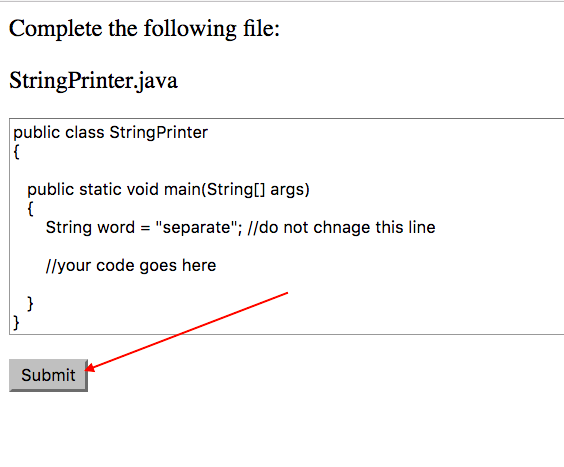
- A report is generated. If there are errors, go back to Bluej and fix them
- When you are happy with the report, click the download link at the bottom of the report.
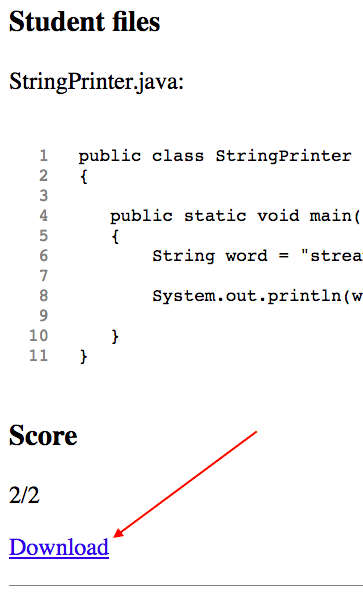
- This will download the report in a file with the extension of signed.zip. It will probably be in your downloads folder.
I recommend that you rename it at this point to avoid uploading the wrong version. Add "_draft" to the file name of the downloaded zip for the draft, e.g. rename project.signed.zip to project_draft.signed.zip, and add "_final" to the file name of the downloaded zip for the final , e.g. rename project.signed.zip to project_final.signed.zip. You can rename it at this point if you wish. But do not change the signed.zip extension
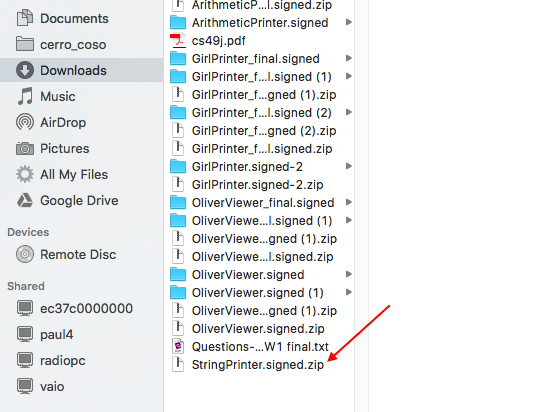
I recommend that you rename the file at this point to avoid uploading the wrong version.
Add "_draft" to the file name of the downloaded zip for the draft.
rename project.signed.zip --> project_draft.signed.zip,
Add "_final" to the file name of the downloaded zip for the final
rename project.signed.zip --> project_final.signed.zip.
But do not change the signed.zip extension
- Go to the assignment page in Canvas. Click the Submit button in the upper right
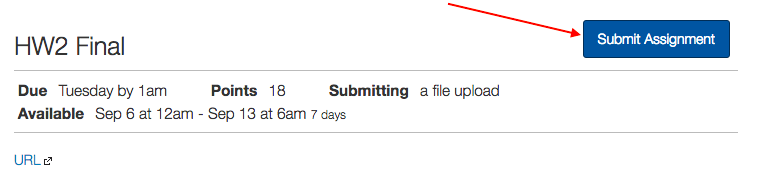
- At the bottom of the page, upload the three signed.zip files
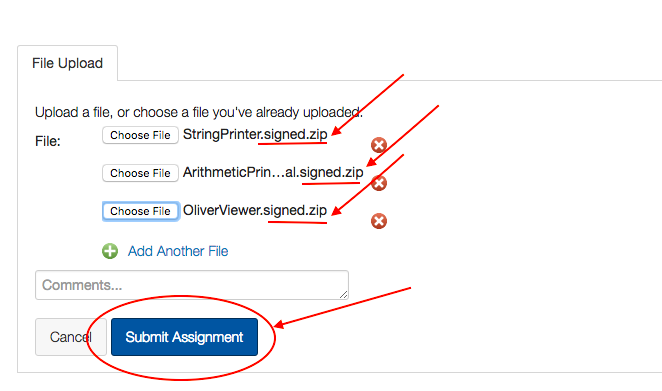
- At any time, you can go to the assignment page and see what you have uploaded. It is a good idea to double check
